


Joomla Gallerie
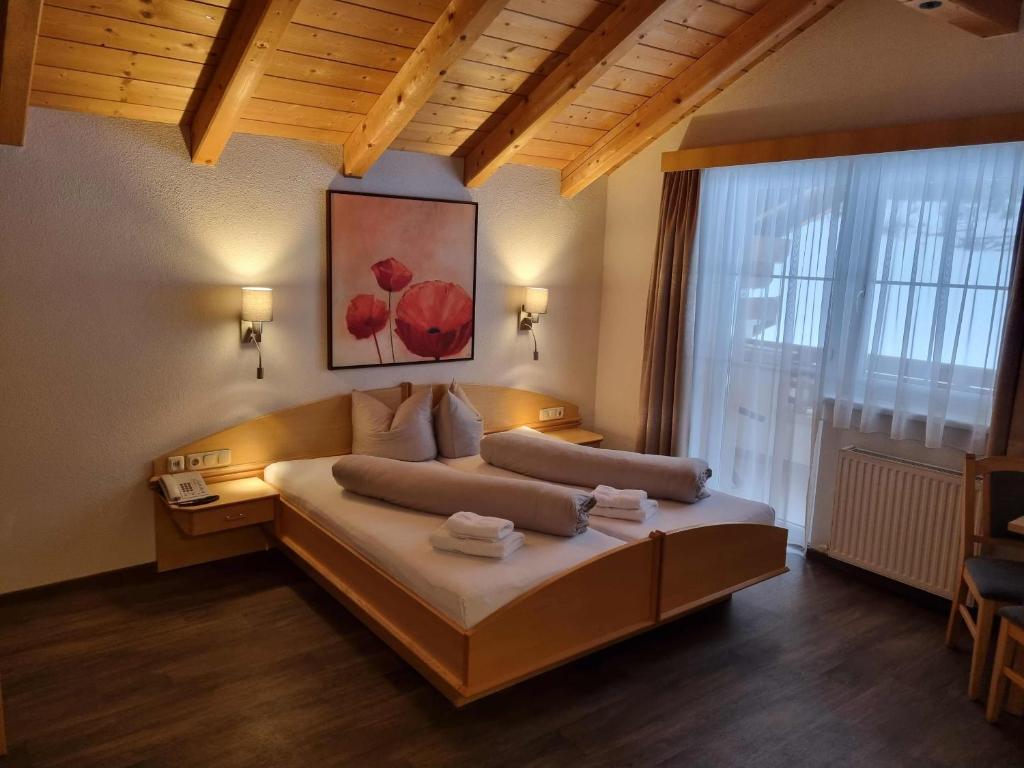
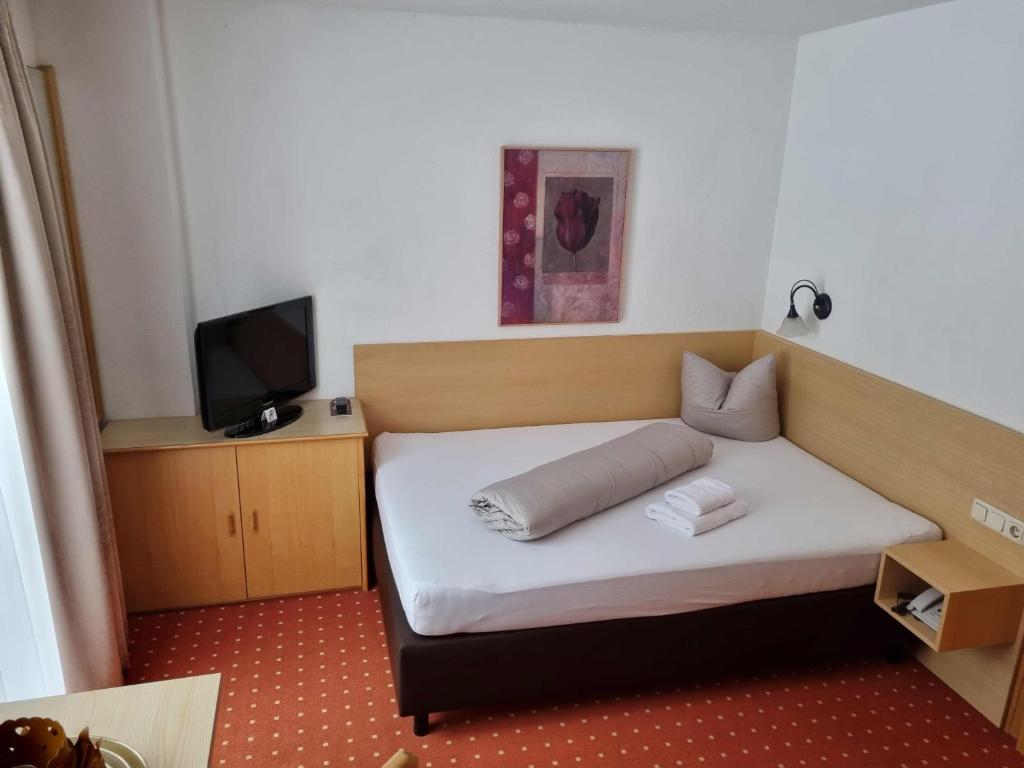
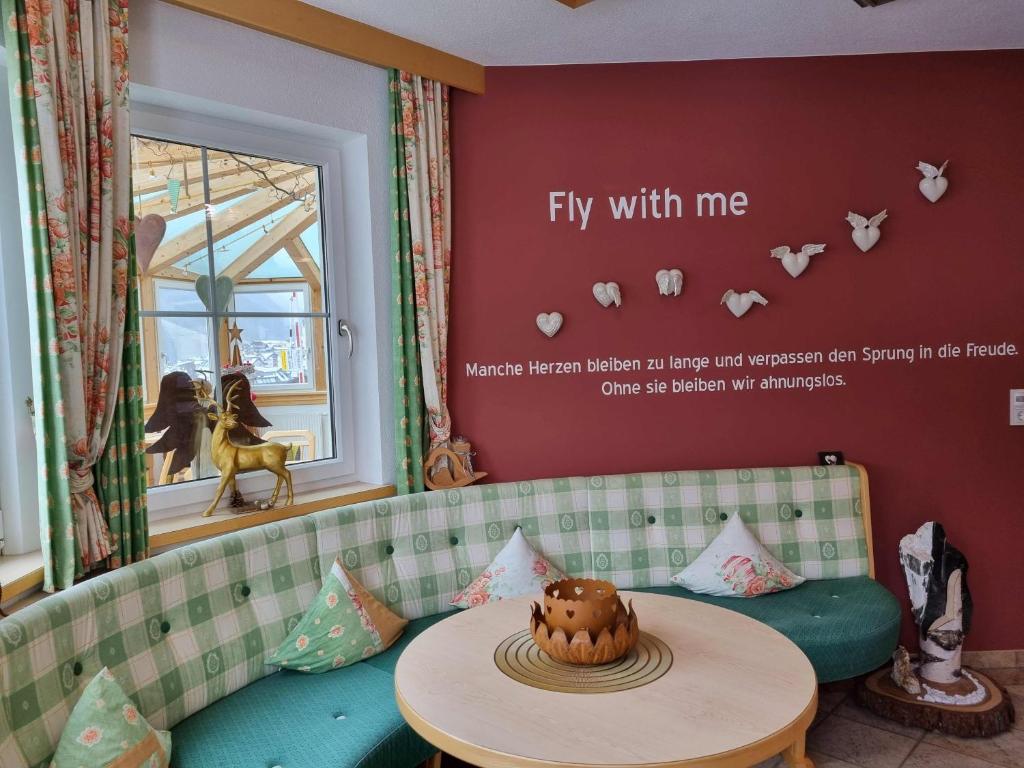
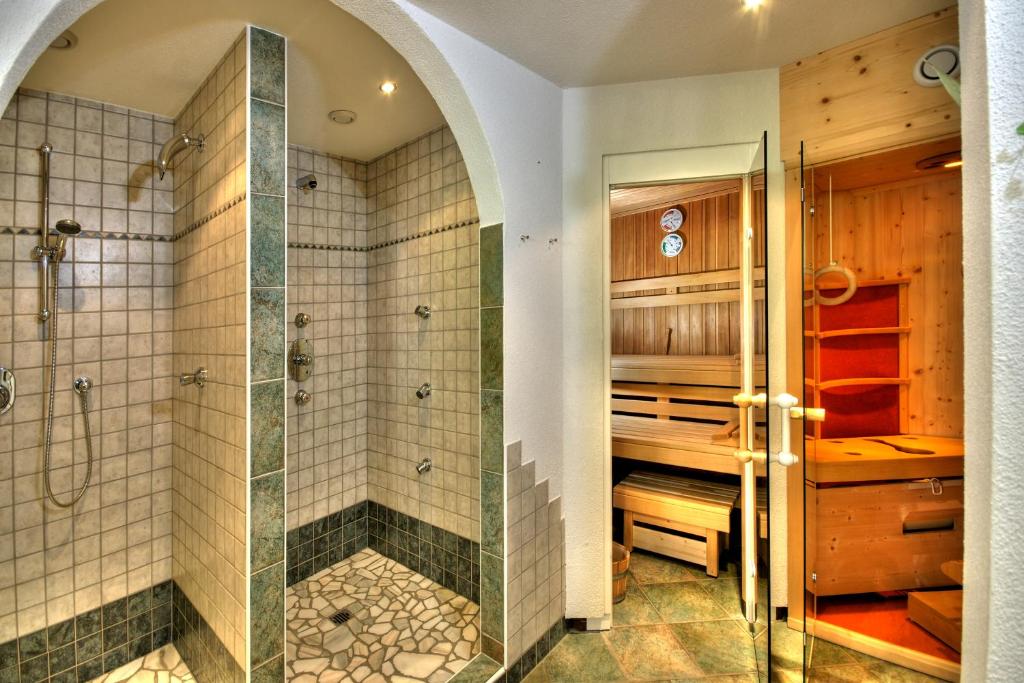


Luxury Gallery Pro
Create impressive photo collections with elegant gallery layouts, cinematic hover animations, premium image frames, interactive carousels and a sophisticated popup lightbox.
Joomla 6
Version 1.2.2
Component + Module
18 Design Presets
13 Hover Options
Responsive
A premium gallery experience for Joomla
PC-DIDI Luxury Gallery Pro combines a centralized gallery manager with a flexible frontend module. Build beautiful photo presentations for hotels, holiday apartments, resorts, photographers, businesses, agencies and portfolio websites.
▦
Gallery Management
Organize your image collections with titles, captions and alternative text.
◧
4 Presentation Modes
Select a classic grid, carousel, large slider or featured image showcase.
✦
Luxury Visual Effects
Customize frames, background surfaces, image corners and hover animations.
◉
Interactive Lightbox
Present large images with thumbnail navigation, captions and previous/next controls.
↔
Carousel Navigation
Use navigation arrows, carousel dots and optional automatic slide transitions.
▣
Responsive Design
Adapt the image presentation for desktops, tablets and smartphones.
Four ways to present your images
Each gallery module can use its own presentation mode. Choose the style that matches your website.
Classic Gallery Grid
A clean and structured gallery layout with adjustable columns, image gaps and luxury frames.
Luxury Carousel
Show several images side by side with interactive previous/next navigation, optional dots and autoplay.
Large Image Slider
Display one large image at a time. Configure the slider height and navigation controls.
Featured Image + Thumbnails
Highlight one main image while offering quick access to the other gallery photographs.
Recommended for hotel websites
Use Luxury Carousel with three visible images for room and apartment previews. For a large photographic introduction, choose Large Image Slider with a height of approximately 480 pixels.
Installation and first gallery
Install the Joomla package
Open Joomla Administrator → System → Extensions → Install and upload the PC-DIDI Luxury Gallery Pro package ZIP.
Create your first gallery
Open Components → PC-DIDI Luxury Gallery Pro and select Create New Gallery.
Upload your photos
Add JPEG, PNG, WebP or GIF images. Enter captions and descriptive alternative text.
Choose a design preset
Select one of the 18 included visual styles and publish your gallery.
Configure the frontend module
Go to Content → Site Modules, open PC-DIDI Luxury Gallery, select your gallery and choose the presentation mode.
Publish and test
Assign a module position and menu pages. Test the navigation, image popup and responsive behavior.
18 premium design presets
Select a design in the gallery component or override it independently in the frontend module.
Royal Gold
Editorial
Masonry
Mosaic
Bento Grid
Polaroid
Cinema
Glass Gallery
Minimal White
Noir Black
Wedding Blush
Alpine Hotel
Neon Luxe
Portfolio
Hotel Signature
Magazine
Luxury Tiles
Filmstrip
Customize each design
Fine-tune image spacing, corner radius, accent color, background surface and border styling directly through the module settings.
13 selectable hover animations
Cinematic Zoom
Subtle image enlargement.
Monochrome to Color
Black and white transitions to full color.
Lift & Shadow
Floating image card with shadow.
3D Tilt
Interactive depth and perspective.
Gold Glow Border
Elegant illuminated frame.
Moving Light Shine
A sweeping light reflection.
Elegant Caption Reveal
Animated image information.
Soft Focus Reveal
Smooth blur transition.
Saturated Color Pop
Enhanced colors on hover.
Luxury Inner Border
Decorative inner image frame.
Floating Image
Gentle floating movement.
Gentle Rotate & Zoom
Slight rotation with image zoom.
No Animation
Minimal, static gallery presentation.
Module customization options
| Setting | Description |
|---|---|
| Select Gallery | Choose a published image collection. |
| Gallery Heading | Optional title above the gallery. |
| Luxury Design Preset | Choose one of 18 preset styles. |
| Gallery Presentation | Grid, Carousel, Slider or Showcase. |
| Slider Height | Set a desktop image height between 200 and 900 px. |
| Carousel: Visible Images | Display between 1 and 5 images. |
| Autoplay Carousel / Slider | Enable or disable automatic transitions. |
| Autoplay Interval | Set the transition delay from 1500 to 15000 ms. |
| Show Previous / Next Arrows | Toggle gallery navigation buttons. |
| Show Carousel Dots | Show or hide position indicators. |
| Open Image in Popup Lightbox | Enable the enlarged image viewer. |
| Popup: Thumbnail Strip | Display image thumbnails inside the popup. |
| Desktop Columns | Choose 1 to 6 image columns. |
| Maximum Images | Limit the number of displayed images. |
| Image Gap | Adjust space between images. |
| Corner Radius | Customize rounded image corners. |
| Accent / Border Color | Set the main gallery accent color. |
| Luxury Hover Animation | Select one of 13 hover behaviors. |
| Luxury Surface Skin | Select a gallery panel appearance. |
| Custom Gallery Background | Define a custom background color. |
| Luxury Frame Color | Set a custom border color. |
| Frame Width | Adjust border thickness between 0 and 8 px. |
Five luxury background skins
The gallery module provides different surface styles for adapting the presentation to your website.
◈
Midnight Navy
Deep blue, elegant and luxurious.
◇
Champagne Pearl
Soft light tones with warm accents.
▧
Frosted Glass
Modern translucent glass appearance.
◆
Obsidian Black
Dark cinematic presentation.
□
Transparent
No additional gallery panel.
Premium image lightbox
The integrated lightbox allows visitors to view individual photographs in a larger popup interface.
Previous / Next
Navigate between photos in the same gallery without reloading the Joomla page.
Thumbnail Navigation
Optionally display a strip of miniature photos for quick image selection.
Captions & Counter
Display image captions and the current position within the photo collection.
Close & Keyboard Controls
Use the close button, Escape key and arrow keys for convenient navigation.
Technical information
Gallery navigation and lightbox image changes use client-side JavaScript and image preloading. The Joomla page itself does not need to reload when moving between photographs.
Recommended settings for hotel galleries
| Setting | Recommended value |
|---|---|
| Presentation | Luxury Carousel |
| Visible Images | 3 |
| Design Preset | Royal Gold or Alpine Hotel |
| Luxury Surface Skin | Midnight Navy |
| Hover Animation | Gold Glow Border |
| Image Gap | 16 px |
| Corner Radius | 18 px |
| Frame Width | 1 px |
| Previous / Next Arrows | Yes |
| Popup Lightbox | Yes |
| Popup Thumbnail Strip | Yes |
| Autoplay | No |
Frequently asked questions
Can I create multiple galleries?
Yes. Create several galleries in the Joomla component. Each frontend module instance can display a selected published gallery.
Can I use different designs on different pages?
Yes. Create additional module instances with different presentation modes, design presets and menu assignments.
Can I turn off the large featured image?
Yes. Choose Classic Gallery Grid or Luxury Carousel in the Gallery Presentation setting.
How do I change the carousel speed?
Enable Autoplay Carousel / Slider and adjust Autoplay Interval in the module settings.
How do I disable the image popup?
Set Open Image in Popup Lightbox to No in the frontend module configuration.
Can I change the gallery background?
Select a Luxury Surface Skin and customize the available background, frame and accent colors.
The carousel arrows do not respond. What should I check?
Verify that navigation arrows are enabled and the latest JavaScript files have loaded. Clear Joomla and browser caches. Temporarily disable JavaScript optimization if scripts have been combined or deferred incorrectly.
Does the component support mobile devices?
The frontend layouts are responsive. Check carousel navigation and popup controls on your specific mobile devices and Joomla template.